



- 1. Android SDK in 2026 at a Glance
- 2. What Is the Android SDK?
- 3. Core Components of the Android SDK
- 4. Android SDK Platform Tools, Explained
- 5. Android Versions and API Levels Explained
- 6. The 2026 Rules You Cannot Ignore
- 7. compileSdk vs targetSdk vs minSdk: The Trap That Breaks Builds
- 8. The Modern 2026 Android Development Stack
- 9. SDK vs Android Studio vs JDK: How They Fit Together
- 10. How Android Studio, the SDK, and Your App Fit Together
- 11. Step-by-Step: Setting Up Your Android SDK
- 12. Common Android SDK Errors (and What They Actually Mean)
- 13. How to Update the Android SDK
- 14. Advanced 2026 Features Worth Knowing
- 15. Developer Verification and the End of Anonymous App Distribution
- 16. Conclusion: Where to Focus in 2026
- 17. Frequently Asked Questions
- What Is the Android SDK Used For?
- Is the Android SDK Free?
- What Is the Difference Between the Android SDK and Android Studio?
- Which JDK Do I Need for Android Development in 2026?
- What Does Target API Level 36 Mean?
- Do I Have to Learn Kotlin, or Can I Still Use Java?
- Where Is the Android SDK Installed?
- How Do I Update the Android SDK?
- What Is ADB?
- Can I Install Multiple SDK Versions at Once?
Summarize with
The Android SDK is the full set of tools you need to build, test, and package an Android app: the code libraries that talk to a phone’s camera or GPS, the build tools that turn your Kotlin into an installable file, and the command-line utilities that push that file onto a device. Think of it as the construction crew and toolbox for anything that runs on Android.
In 2026, that toolbox does a lot more than it used to. Apps now ship on-device AI, run across foldables and wearables, and have to clear stricter Google Play rules than ever before. This guide walks through every piece, the deadlines you cannot miss this year, and how to set it all up without the usual beginner traps. and if you’d rather have this handled by a team than build it yourself, Boomdevs’ mobile app development services cover exactly this stack end to end.
Android SDK in 2026 at a Glance
- The Android SDK bundles API libraries, build tools (aapt2, d8), platform tools (ADB, fastboot), the emulator, and the versioned SDK platforms themselves.
- New apps and updates on Google Play must target Android 16 (API level 36) from August 31, 2026, with extensions available to November 1.
- Kotlin is the default language, Jetpack Compose is the default UI toolkit, and on-device AI arrives through ML Kit’s GenAI APIs powered by Gemini Nano on supported hardware only, not every Android device.
- You need at least JDK 17 to run the modern Android Gradle plugin. JDK 21 is a common, well-supported choice.
- Your compileSdk in Gradle must match a platform you actually installed in SDK Manager, or the build fails before it starts.
- Android 17 (API level 37), codenamed Cinnamon Bun internally, completed its beta program (Beta 4, April 2026) and multiple outlets report a stable release around mid-June 2026, but verify the current status directly on developer.android.com/about/versions/17 before citing it, since Google’s own archived release-notes page hadn’t been updated to reflect a stable build as of this writing.
What Is the Android SDK?
The Android SDK (Software Development Kit) is the official collection of tools, libraries, and utilities Google provides for building Android apps. Without it, your code is just text. With it, that text becomes an app a phone can install and run.
A simple way to picture it: if Android is a city, the SDK is the entire construction toolkit. The API libraries are your pre-fabricated walls and wiring, the build tools are the machinery that assembles them, and the platform tools are the trucks that deliver the finished building to a plot of land (a device or emulator).
That analogy matters more in 2026 than it did a few years back. The SDK is no longer only for phone apps. The same toolkit now targets foldables, Wear OS watches, Android TV, cars, and early XR headsets, and it ships the hooks for on-device AI that used to require a server. One kit, many surfaces.
Key takeaway: The Android SDK is the complete toolbox for creating Android software, from hardware access to packaging. In 2026 it spans phones, wearables, TV, cars, XR, and on-device AI, not just apps. See Google’s official SDK overview for the canonical reference.
Core Components of the Android SDK
The SDK is not one file. It is five moving parts that work together, and knowing what each does saves hours of confusion later.
- Android API Libraries. These are the pre-written classes that let your app reach the hardware and system features: the camera, GPS, sensors, biometrics, notifications, and more. You call a library instead of writing device drivers yourself.
- Build Tools. Conversion machinery. Tools like aapt2 compile your app’s resources, and d8 (with r8 for shrinking) turns compiled Kotlin or Java into the DEX bytecode that Android runs. The end product is an APK or, for the Play Store, an AAB.
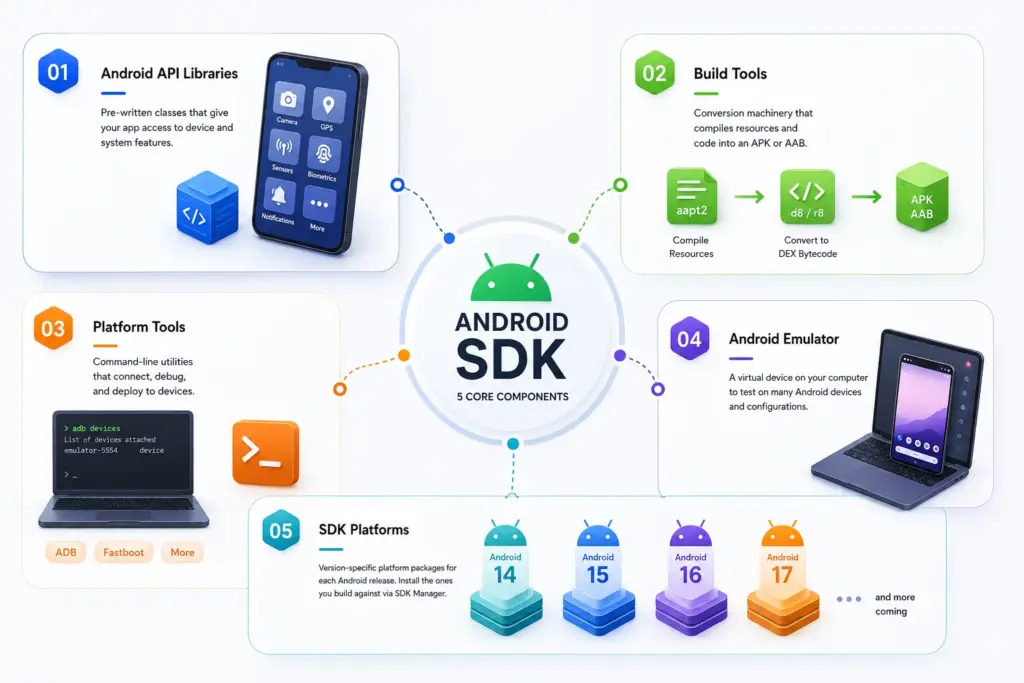
- Platform Tools. ADB, fastboot, and related command-line utilities for talking to devices covered in depth just below.
- Android Emulator. A virtual device that runs on your computer, so you can test on an “Android 16 Pixel” or a foldable without owning one. It mirrors real hardware closely enough for most day-to-day work.
- SDK Platforms. The version-specific pieces. Each Android release ships its own platform package (Android 14, 15, 16, 17, and more coming), and you install the ones you build against through SDK Manager.
Key takeaway: The five core pieces are the API libraries, build tools, platform tools, the emulator, and the SDK platforms. Libraries give you features, build tools package them, and platform tools ship them to a device.
Android SDK Platform Tools, Explained
Platform Tools deserve their own section since they’re what you’ll actually type into a terminal most often, and the group is smaller and more stable than people expect.
- ADB (Android Debug Bridge). The one you’ll use constantly. It installs apps, streams logs, runs shell commands, and transfers files between your computer and a connected device or emulator.
- fastboot. Used to flash partitions on a device while it’s in bootloader mode, most commonly for unlocking a bootloader or recovering a device. It’s a lower-level, higher-risk tool than ADB, since a wrong command here can leave a device unbootable; treat it with real caution and follow official device-specific instructions rather than guessing.
- systrace. Worth mentioning for historical accuracy, but it’s obsolete: Google’s own Platform Tools release notes list it as replaced by Android Studio’s Profiler, Perfetto, or gpuinspector.dev. If a tutorial tells you to run systrace today, reach for Profiler or Perfetto instead.
If you don’t need the full Android Studio install, Google offers Platform Tools as a standalone download containing just ADB and fastboot, handy if you only need to sideload an APK or flash a device and don’t want the multi-gigabyte full SDK.
Key takeaway: ADB is your daily driver for installing and debugging, fastboot is for bootloader-level work and needs care, and systrace has been retired in favor of Profiler and Perfetto.
Android Versions and API Levels Explained
Every Android release maps to a numbered API level, and Gradle speaks in those numbers, not marketing names. Getting this mapping wrong is one of the most common early mistakes, so here it is in one place.
| Android Version | API Level | Codename (internal) | Status in 2026 |
| Android 14 | 34 | Upside Down Cake | Supported, older target |
| Android 15 | 35 | Vanilla Ice Cream | Minimum target for existing apps |
| Android 16 | 36 | Baklava | Required target for new apps (Aug 31, 2026) |
| Android 17 | 37 | Cinnamon Bun | Beta complete; widely reported stable mid-2026 (verify) not yet the Play target requirement |
Android 16 reached general availability in August 2025 and carries API level 36. Android 17, internally codenamed Cinnamon Bun, moved through Google’s newer continuous Canary and beta model, completed its final scheduled beta (Beta 4) in April 2026, and multiple outlets have reported a stable release around mid-June 2026. Treat that stable date as widely reported rather than something this guide independently confirms: Google’s own archived release-notes page for Android 17 hadn’t been updated past Beta 4 as of this writing, so check developer.android.com/about/versions/17 directly for its current, authoritative status before you rely on it. Separately, Google Play’s mandatory target-API requirement for new app submissions is still API 36 (Android 16) as of this writing; historically Google raises that bar roughly a year behind the newest stable release, so budget for API 37 becoming the requirement sometime in 2027, and check Google Play’s target API requirements page for the current, authoritative number before you rely on this table.
When someone says “target API 36,” they mean Android 16. When Gradle complains about android-35, it means Android 15. Keep this table handy and half the setup errors disappear.
Key takeaway: API level is Gradle’s language for an Android version: Android 17 is API 37 (widely reported stable in mid-2026, though double-check current status), Android 16 is API 36, Android 15 is API 35, Android 14 is API 34. Match the number to the version and most build confusion goes away.
The 2026 Rules You Cannot Ignore
Three Google Play mandates now shape how you build and publish, plus two newer requirements most guides skip. Miss these and your app either gets rejected or quietly stops reaching new users. As with any policy deadline, confirm the current status on Google Play’s official policy pages before you plan around it, since these dates and thresholds are Google’s to change.
Target API Level 36 Is Now Mandatory
From August 31, 2026, every new app and every app update submitted to Google Play must target Android 16 (API level 36) or higher. Wear OS and Android Automotive apps target API 35, and Android TV and XR apps target API 34.
Existing apps that stay untouched need to target at least Android 15 (API 35) to remain visible to new users on newer devices. Below that, your app does not crash. It simply stops appearing in Play search for new installs, which is a quieter and arguably worse outcome. If you need breathing room, Google offers an extension request through the Play Console that runs to November 1, 2026.
Android App Bundles Replaced the APK for Publishing
The Play Store no longer accepts the old monolithic APK for new apps. You publish an Android App Bundle (AAB) instead, and Google generates optimized APKs from it for each user’s specific device.
The upside is smaller downloads, since a user only gets the code and resources their phone actually needs. The APK still exists, you still use it locally with adb install for testing, but for distribution the AAB is the format.
Play App Signing Uses a Two-Key System
When you publish through Google Play, your app’s signing is split across two keys, and the distinction trips up almost everyone the first time.
Your upload key signs the bundle you send to Google. Google then re-signs the app for users with the app signing key, which it stores and protects on your behalf. If you ever lose your upload key, you can reset it, but the app signing key stays safe with Google, so your users keep getting verifiable updates.
Two More Requirements Worth Knowing
Android 16 introduces support for 16 KB memory page sizes. If your app ships native libraries (.so files), they must be aligned to 16 KB boundaries to run correctly on newer devices. Pure Kotlin or Java apps are unaffected, but anyone using the NDK should check their alignment.
The second is developer verification, which changes who is allowed to distribute apps at all. It gets its own section further down, because it reaches beyond the Play Store.
Key takeaway: New Play Store apps must target API 36 by August 31, 2026, publish as an AAB, and use two-key Play App Signing. Native-code apps also need 16 KB page alignment for Android 16.
compileSdk vs targetSdk vs minSdk: The Trap That Breaks Builds
These three Gradle settings look similar and mean completely different things. Confusing them causes either a build failure or a silent bug, so it is worth 60 seconds to get right.
| Setting | What it controls | Common 2026 value |
| compileSdk | The API level your code compiles against (which APIs you can call) | 36 |
| targetSdk | The API level your app is tested and optimized for at runtime | 36 |
| minSdk | The oldest Android version your app will install on | 24 to 26 |
Here is the part that catches beginners: your compileSdk value must have a matching platform physically installed in SDK Manager. If your build. gradle gradle says compileSdk = 36 but you never downloaded the Android 16 platform, Gradle fails during the configuration or compilation step, before a single line of your app’s code runs, typically with a “failed to find target” style error naming the missing platform.
The fix is boring and reliable. Whatever number you put in compileSdk, open SDK Manager (or run sdkmanager) and make sure that exact platform is checked and installed. Version numbers in Gradle are promises your local SDK has to keep.
Key takeaway: compileSdk sets which APIs you can call, targetSdk sets what you optimize for, and minSdk sets your oldest supported device. Whatever compileSdk you choose must be installed in SDK Manager, or Gradle stops cold during configuration.
The Modern 2026 Android Development Stack
The tools have consolidated. A few years ago you had real choices about language and UI, but in 2026 the defaults are clear, and fighting them mostly creates work.
Kotlin First, Java Legacy
Kotlin is the language Google builds for, documents first, and recommends for all new code. It is more concise than Java, has built-in null safety that prevents a whole category of crashes, and its coroutines make background work far easier to reason about.
Java still runs fine and existing Java code is not going anywhere. But new tutorials, sample apps, and libraries assume Kotlin, so learning it is the practical choice.
Jetpack Compose for UI
Jetpack Compose is Android’s declarative UI toolkit, and it is now the default way to build screens. Instead of describing layouts in XML and wiring them up separately, you write UI as Kotlin functions that describe what the screen should look like for a given state.
One naming clarification worth making, because plenty of 2026 posts get it wrong: there is no “Compose 2.0.” Compose itself sits around the stable 1.10 line. The big “2.0” you may have heard about is Kotlin’s K2 compiler (Kotlin 2.x), which speeds up builds and improves how Compose handles recomposition. Google now treats the older View and XML system as maintenance-only, so new UI work goes to Compose.
On-Device AI With Gemini Nano and ML Kit
On-device generative AI is a real, shipping part of the toolkit now, not a demo. Through ML Kit’s GenAI APIs, which run on the Gemini Nano model via Android’s AICore system service, apps can do generative work locally without sending data to a server.
The supported tasks are specific and practical: summarization, proofreading, rewriting text in different tones, generating image descriptions, and speech-to-text transcription. There is also a Prompt API for custom text and multimodal requests. Because everything runs on-device, it works offline and keeps user data on the phone, though the model is smaller and less capable than a cloud model, so pick use cases that fit.
One important caveat most beginner-facing guides skip: these APIs only work on supported hardware, not on any Android device that meets a minimum API level. AICore requires an optimized MediaTek Dimensity, Qualcomm Snapdragon, or Google Tensor platform, which in practice means recent flagship devices, current-generation Pixels and Galaxy phones today, with the supported list expanding to more manufacturers and mid-range hardware over time. Rather than memorizing today’s device list, check ML Kit’s current supported-devices documentation at build time, since it’s the one place this stays current, and design a fallback path (cloud inference or a simpler non-AI feature) for devices outside it rather than assuming Gemini Nano is available everywhere your app runs.
Kotlin Multiplatform for Shared Logic
Kotlin Multiplatform (KMP) lets you write your business logic once and share it between Android and iOS, while keeping each platform’s UI native. Google now officially supports KMP, and many Jetpack libraries ship KMP-compatible versions.
The common pattern in 2026 is shared Kotlin logic underneath, with Compose on Android and either Compose Multiplatform or native SwiftUI on iOS. You share the expensive, error-prone parts (networking, data, business rules) and leave the UI where it feels most at home.
Key takeaway: The 2026 default stack is Kotlin, Jetpack Compose, and on-device AI through ML Kit’s Gemini Nano APIs on supported hardware, with Kotlin Multiplatform for sharing logic across platforms. Java and XML still work but are no longer where new development happens. If you’re validating whether an app idea is worth this stack before committing engineering time to it, Boomdevs’ MVP development services are built for exactly that scoping stage.
SDK vs Android Studio vs JDK: How They Fit Together
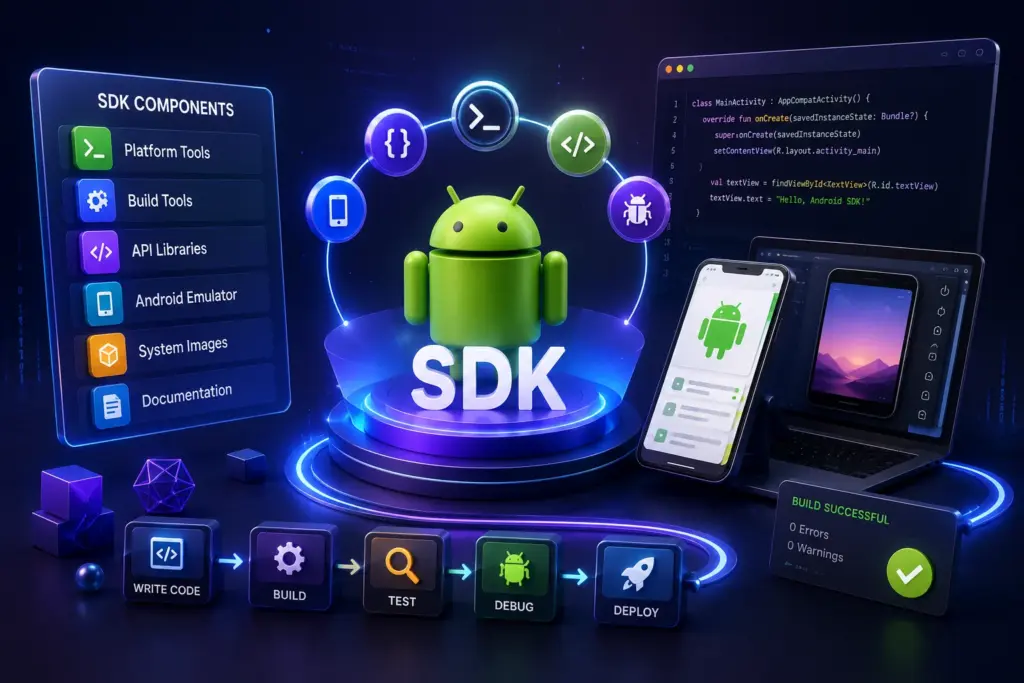
People mix these three up constantly, so here is the clean version. The SDK is the toolkit, Android Studio is the workshop you use it in, and the JDK is the engine that powers the machinery.
Android Studio is the IDE (the editor). It is where you write code, design UI, run the emulator, and click “build.” It bundles a copy of the SDK, but they are separate things: the SDK can exist and be used from the command line with no Android Studio at all.
The SDK is the actual set of tools and libraries described throughout this guide. Android Studio drives it, but the SDK does the work.
The JDK (Java Development Kit) is the runtime that Gradle and the Android build tools run on. Even a pure-Kotlin app needs it, because the build system itself runs on the JVM. The modern Android Gradle plugin requires JDK 17 to run, and JDK 21, a newer long-term-support release, is also widely used and a safe default.
A quick note on Android Studio’s naming rather than specific current codenames: Google names each stable release after an animal, alphabetically, paired with a year-based version number (like 2026.1). Because a new one ships every few months, any specific codename mentioned in an article risks being out of date by the time you read it; this guide isn’t going to name one and imply it’s current. Instead, just check Android Studio’s official release notes for whatever the current stable name and version actually are before you install.
Key takeaway: Android Studio is the editor, the SDK is the toolkit it drives, and the JDK is the engine the build runs on. You need JDK 17 at minimum for the modern build system, with JDK 21 a solid choice.
How Android Studio, the SDK, and Your App Fit Together
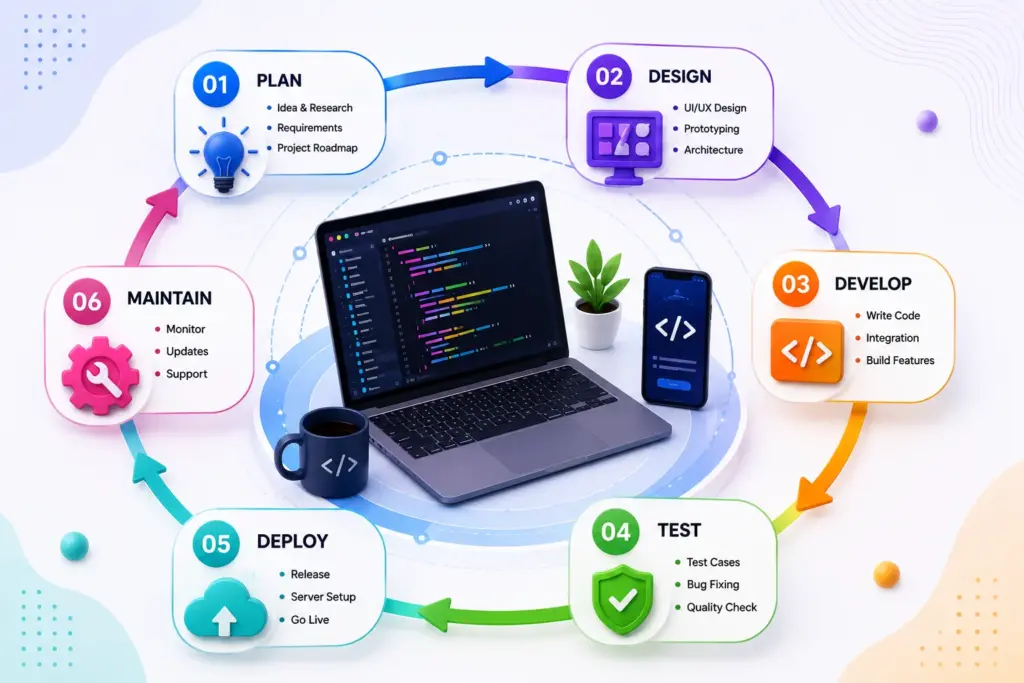
If the relationships above still feel abstract, here’s the same idea end to end: you write code in Android Studio, Gradle and the JDK compile it using the SDK’s build tools against a platform you installed, and the output is the APK or AAB that ADB (or Google Play) puts on a device.
Step-by-Step: Setting Up Your Android SDK
You can be building in under an hour. Here is the shortest reliable path for 2026, with the real commands you will actually use.
- Check your machine. Modern Android tooling is hungry, but the requirement and the comfortable working setup are two different numbers, for both RAM and storage. Google’s stated floor is 8 GB of RAM to run Android Studio by itself; once you add the emulator into daily use, 16 GB is the realistic practical minimum, and Google itself recommends 32 GB for smoother, professional-grade work, especially once you’re running more than one virtual device at a time (each one eats roughly 4 GB on its own). Storage works the same way: Google’s own stated minimum is around 8 GB of free disk just for the IDE and a bare SDK install, but that number evaporates fast in practice once you add a couple of SDK platforms, one or two emulator system images, and actual project files, 30 GB or more free disk is a more realistic working budget, and active developers juggling multiple Android versions often end up well past that.
- Install the latest stable Android Studio. Download it from the official site and let it run its first-time setup wizard. That wizard installs a baseline SDK, the platform tools, and a default emulator image for you.
- Open SDK Manager and install what you need. Inside Android Studio, SDK Manager is where you add platforms and tools. For 2026 work, install the Android 16 (API 36) platform so your compileSdk = 36 has something to compile against. Prefer the command line? These work (the exact syntax below matches Google’s own sdkmanager reference docs, though the specific build-tools patch version shown may have moved on since run sdkmanager –list first to see what’s actually current):
# See everything available and installed
sdkmanager –list
# Install the Android 16 platform and matching build tools
sdkmanager “platforms;android-36” “build-tools;36.0.0”
# Update installed packages
sdkmanager –update
- Learn a few ADB commands. ADB is how you talk to a device or emulator. The handful you will reach for constantly:
# List connected devices and emulators
adb devices
# Install an APK for local testing
adb install app-debug.apk
# Stream live logs (your best friend for debugging)
adb logcat
# Open a shell on the device
adb shell
- Create a project and run it. Start a new Compose project from the templates, pick the emulator or plug in a phone with USB debugging on, and hit run. If it launches, your SDK, JDK, and build tools are all talking to each other correctly.
Key takeaway: Install a current Android Studio, add the Android 16 (API 36) platform through SDK Manager, and learn sdkmanager –list plus adb logcat. Budget 16 GB of RAM as your realistic working minimum once the emulator is in the mix, even though 8 GB is Google’s stated floor for Android Studio alone.
Common Android SDK Errors (and What They Actually Mean)
A handful of errors account for most of the frustration in a beginner’s first few weeks. Here’s what each one is actually telling you, since the raw error text rarely explains itself.
- “Failed to find target with hash string ‘android-36′” – Gradle wants a platform you haven’t installed. Open SDK Manager and check the box for that exact API level, as covered in the compileSdk section above.
- “SDK location not found” – Android Studio can’t find your SDK install path, usually after a fresh machine setup or a moved folder. Create or edit local.properties in your project root with sdk.dir=/path/to/your/sdk, or set it via Settings → Languages & Frameworks → Android SDK.
- “INSTALL_FAILED_UPDATE_INCOMPATIBLE” or a signature mismatch on install – you’re trying to install a debug build over a version signed differently (often a release build, or one from a teammate’s machine). Uninstall the existing app from the device or emulator first, then reinstall.
- “Unsupported major.minor version” or a Gradle/JDK mismatch – your JDK is older than what the Android Gradle Plugin requires. Confirm you’re on JDK 17 or newer, and check that Android Studio’s own bundled JDK (Settings → Build Tools → Gradle) is what’s actually being used to run the build.
- Emulator won’t start, or starts and immediately freezes – most often a virtualization setting, not an Android problem. On Windows/Linux, confirm Intel VT-x or AMD-V is enabled in the BIOS; on a first boot specifically, also just wait longer than feels reasonable, since a cold emulator start is genuinely slow.
- “Could not resolve dependency” during a Gradle sync – usually a network or repository access issue rather than a code problem. Confirm your build. gradle repositories block includes google() and mavenCentral(), and check whether a proxy or firewall is blocking Gradle’s dependency downloads.
None of these mean your project is broken in some deep way. They’re almost always a missing installed component, a path pointing somewhere stale, or a version mismatch between two of the moving pieces this guide covers: SDK, JDK, Gradle, and the platform you’re targeting.
How to Update the Android SDK
Keeping the SDK current matters more than it sounds, since a stale platform or build-tools version is a common source of “works on my machine” bugs.
- Through Android Studio’s SDK Manager (GUI). Go to Settings/Preferences → Languages & Frameworks → Android SDK, or use the toolbar shortcut. Each installed platform and tool shows an available-update indicator; check the box and click Apply.
- Through the command line. sdkmanager –update updates every installed package to its latest available version. sdkmanager –list first shows you what’s installed versus what’s available, so you can see what would change before you commit to it.
- Platform Tools (ADB, fastboot) update on their own separate cadence from SDK platforms, as covered above. Android Studio keeps its bundled copy current automatically, but a standalone install needs a manual re-download periodically.
- A practical habit: update before starting a new project or right after Google announces a new stable Android version, rather than mid-project, since a mid-project SDK or build-tools jump can occasionally shift build behavior in ways worth testing deliberately rather than discovering by accident.
Key takeaway: Use SDK Manager’s GUI checkboxes for routine updates, or sdkmanager –update from the command line. Platform Tools update on their own schedule and need a separate re-download if you’re not using the full Android Studio install.
Advanced 2026 Features Worth Knowing
Once the basics work, two features separate a decent app from a polished one. Neither is required, but both are increasingly expected.
The Privacy Sandbox SDK Runtime
The SDK Runtime is Android’s answer to a long-standing problem: third-party SDKs (ad networks, analytics, and similar) traditionally ran inside your app’s process, which meant they could reach data they had no business touching.
With the SDK Runtime, those third-party SDKs run in a separate, isolated process with their own limited permissions. They can do their job without direct access to your app’s private data or user information, which reduces both privacy risk and the blast radius when a bundled SDK misbehaves. If your app monetizes with ads, this is where that integration is heading.
Baseline Profiles for Faster Startup
A Baseline Profile is a list of the code paths your app uses most, shipped alongside the app so Android can pre-compile them at install time instead of compiling on the fly during use.
The payoff is real and measurable: faster cold starts, smoother scrolling, and fewer jank frames on first launch, because the hot paths are already compiled ahead of time rather than warming up while the user waits. For a modest amount of setup, it is one of the cheapest performance wins available.
Key takeaway: The SDK Runtime isolates third-party SDKs like ad networks in their own process so they cannot reach your app’s data. Baseline Profiles pre-compile your hottest code paths at install time for noticeably faster startup.
Developer Verification and the End of Anonymous App Distribution
Google is tying every app on certified Android devices to a verified developer identity, and this reaches beyond the Play Store to sideloaded apps too. It is the most consequential distribution change in years, so it is worth getting the facts straight rather than the panic.
Under the new system, apps on certified devices need to come from a registered, verified developer, whether they arrive through Play, another store, or a direct APK. Verification confirms who the developer is, not what the app contains, which Google compares to an airport ID check.
The rollout is regional and gradual, not a global switch. Enforcement begins on September 30, 2026 in four countries: Brazil, Indonesia, Singapore, and Thailand, with wider expansion to certified devices planned for 2027. Sideloading itself does not disappear. Unregistered apps can still be installed through ADB or a new “advanced flow” with extra confirmation steps, so power users and testers keep a path.
For hobbyists and students worried about being locked out, Google is offering a lighter verification tier. The practical takeaway: if you distribute apps outside Play, start planning your verification rather than assuming sideloading stays anonymous forever. Check Android’s developer verification documentation for the current rollout status, since regional enforcement dates are exactly the kind of detail that shifts.
Key takeaway: Certified Android devices will require apps from verified developers, including sideloaded ones, starting September 30, 2026 in four countries and expanding in 2027. Sideloading survives through ADB and an advanced flow, but anonymous distribution is ending. Keeping up with this kind of compliance shift while also shipping features is exactly where a team dedicated to custom software development earns its keep over a single in-house generalist.
Conclusion: Where to Focus in 2026
If you are starting fresh, the SDK can feel like a mountain of tools. It is not. A small core carries almost everything you will do this year.
Learn Kotlin, build UI with Jetpack Compose, and lean on the standard architecture pieces the community has settled on: Hilt for dependency injection and Coroutines for background work. Install the Android 16 (API 36) platform, keep your compileSdk and installed platforms in sync, and get comfortable with adb logcat for debugging.
Then watch the deadlines. Target API 36 by August 31, ship AABs, and if you distribute outside Play, plan for developer verification. Everything else- the emulator, build tools, on-device AI- is there when you need it. If you’re not sure your team can handle all of this alone, here’s what a mobile app consultant does and when it makes sense to bring one in.
Ready to beat the August 31 deadline? Open SDK Manager, install the Android 16 (API 36) platform today, and run your existing project against it to catch breaking changes early, while you still have time to fix them. And if walking through your specific setup with someone would save time versus figuring it out solo, Boomdevs’ consulting team advises on exactly this kind of Android platform and architecture planning.
Frequently Asked Questions
What Is the Android SDK Used For?
The Android SDK is used to build, test, and package Android apps. It provides the libraries that let your code access device features like the camera and GPS, the build tools that turn your code into an installable file, and utilities like ADB and the emulator for running and debugging that app on real or virtual devices.
Is the Android SDK Free?
Yes. The Android SDK is free to download and use, and so is Android Studio, the official IDE that bundles it. You only pay if you choose to publish on Google Play, which charges a one-time developer registration fee, or if you use paid third-party services in your app. The tools are free, but the build itself isn’t, so here’s what it costs to build an Android app.
What Is the Difference Between the Android SDK and Android Studio?
Android Studio is the code editor and workshop, while the SDK is the toolkit it uses. Android Studio bundles a copy of the SDK for convenience, but the SDK is a separate set of tools that can be run from the command line without the IDE at all. The IDE drives the SDK, and the SDK does the actual building.
Which JDK Do I Need for Android Development in 2026?
You need JDK 17 at minimum, because the modern Android Gradle plugin requires it to run. JDK 21, a newer long-term-support release, is also fully supported and a common default. This applies even to pure Kotlin projects, since the build system itself runs on the JVM.
What Does Target API Level 36 Mean?
Target API level 36 means your app is built and optimized for Android 16. From August 31, 2026, Google Play requires all new apps and updates to target API 36 or higher. You set this with the targetSdk value in your build. Gradle build file.
Do I Have to Learn Kotlin, or Can I Still Use Java?
You can still use Java, and existing Java code keeps working. But Kotlin is Google’s recommended and default language for new Android development in 2026, and nearly all new documentation, sample code, and libraries assume it. For anyone starting now, learning Kotlin is the more practical path.
Where Is the Android SDK Installed?
By default, Android Studio installs the SDK to a platform-specific location: %LOCALAPPDATA%\Android\Sdk on Windows, ~/Library/Android/sdk on macOS, and ~/Android/Sdk on Linux. You can confirm or change this path anytime in Android Studio under Settings/Preferences → Languages & Frameworks → Android SDK, where the “Android SDK Location” field at the top shows exactly where it’s pointed.
How Do I Update the Android SDK?
Open SDK Manager inside Android Studio and check for available updates on installed platforms and tools, or run sdkmanager –update from the command line to update everything installed to its latest version. See the Platform Tools section above for their separate update cadence.
What Is ADB?
ADB (Android Debug Bridge) is the command-line tool that lets your computer talk to an Android device or emulator. It’s how Android Studio installs your app during development, but you can also run it directly: adb install app-debug.apk installs an app, adb logcat streams live device logs for debugging, adb devices lists what’s currently connected, and adb shell opens a command shell on the device itself. It ships as part of Platform Tools, covered in detail earlier in this guide, and it’s the single most-used command-line tool in day-to-day Android development.
Can I Install Multiple SDK Versions at Once?
Yes, and for most real projects you should. SDK Manager lets you install several platform versions side by side (for example, API 33 for a minSdk baseline and API 36 for compileSdk), and Android Studio uses whichever one each project’s build. Gradle specifies. Installing multiple versions doesn’t cause conflicts; it just uses more disk space, which is exactly why a realistic working setup runs closer to 30 GB free than the bare 8 GB minimum mentioned in the setup steps above.