


- 1. Key Takeaways
- 2. 12 Mobile UI/UX Best Practices to Follow in 2026
- 1. Get Users to Value in the First Session
- 2. Design for the Thumb Zone
- 3. Size Touch Targets for Real Fingers
- 4. Keep Navigation Shallow and Visible
- 5. Give Every Screen One Primary Job
- 6. Follow Platform Conventions Before Brand Flair
- 7. Make Text Readable at Arm's Length
- 8. Cut Typing to the Minimum
- 9. Design Every State, Not Just the Happy Path
- 10. Make the App Feel Fast and Responsive
- 11. Build Accessibility In From Day One
- 12. Test With Five Users, Then Measure After Launch
- 3. What's Changed in Mobile UX for 2026
- 4. Mobile UI/UX Best Practices at a Glance
- 5. How to Prioritize Mobile UI/UX Best Practices by Product Stage
- 6. How Boomdevs Fixes Mobile UX That Loses Users
- 7. Frequently Asked Questions
Summarize with
Your app finally ships. Downloads look fine for a week. Then the 30-day numbers land, and close to half your new users have already deleted it. You start wondering what they saw that you didn’t.
These 12 mobile UI/UX best practices are the fixes that keep those users. Each one comes from published platform rules and fresh usability research. Use the list as an audit, starting with whatever your app gets wrong first.
Key Takeaways
- This list covers 12 mobile UI/UX best practices across reach, clarity, speed, accessibility, and testing.
- Fix the first session before anything else, since most uninstalls happen on day one.
- Thumb reach, touch target size, and visible navigation remove most everyday friction.
- Accessibility is now a legal requirement for many consumer apps sold in the EU.
- Small prototype tests with a handful of users catch problems while they’re still cheap.
12 Mobile UI/UX Best Practices to Follow in 2026
How did these 12 make the cut? Each one shows up in Apple’s and Google’s design guidelines, in published usability research, or both. Each one also matters to the person paying for the app, not just the person designing it.
If you’re weighing mobile UI/UX design services for your product, this list doubles as your review checklist.
Treat these mobile UI/UX best practices as an audit, not a wish list. Open your app, go through each rule, and mark where it slips.
The order roughly follows a user’s path, from first open to daily use.
1. Get Users to Value in the First Session
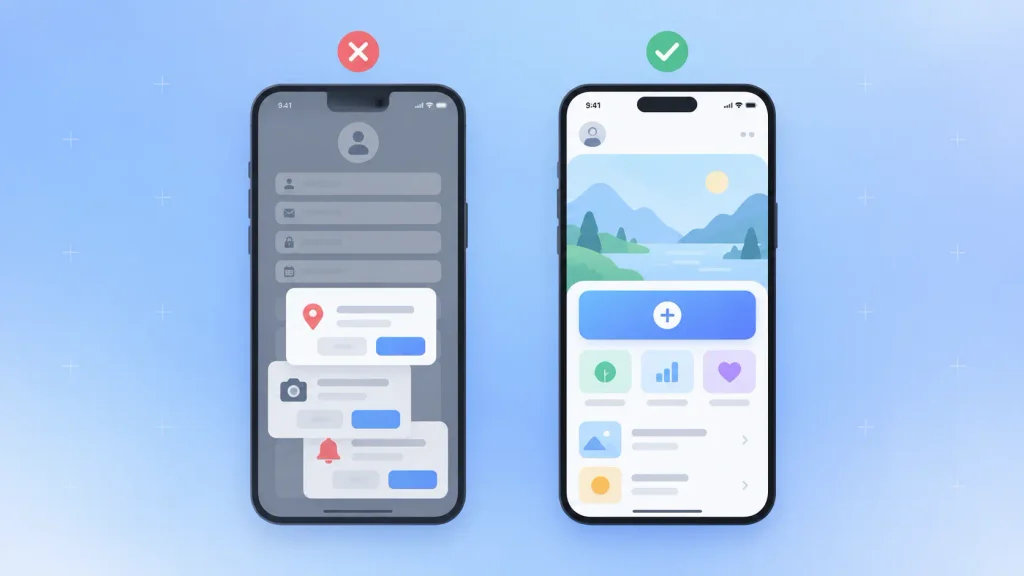
Your app’s first session decides whether there’s a second one. In AppsFlyer’s 2025 app uninstall report, 46.1% of Android installs were uninstalled within 30 days, and most of those uninstalls happened on day one.
That’s rarely a feature problem. It’s usually an onboarding problem: too many screens, a sign-up wall, and a stack of permission prompts before the user sees anything useful.
Here’s what you can usually cut or move later in your onboarding flow:
- Forced sign-up: let people try the core feature first, then ask for an account when they want to save something.
- Permission prompts on launch: ask for location, camera, or notifications at the moment a feature needs them. A request with context makes sense; a cold one on the welcome screen gets denied.
- Long product tours: two or three screens that show the main action beat a slideshow explaining every setting.
- Profile questions: collect only what you need to start, and gather the rest as people use the app.
For the product side of early churn, the most common reasons mobile apps fail goes deeper. On the design side, the rule is simple. Show value before you ask for anything.
2. Design for the Thumb Zone
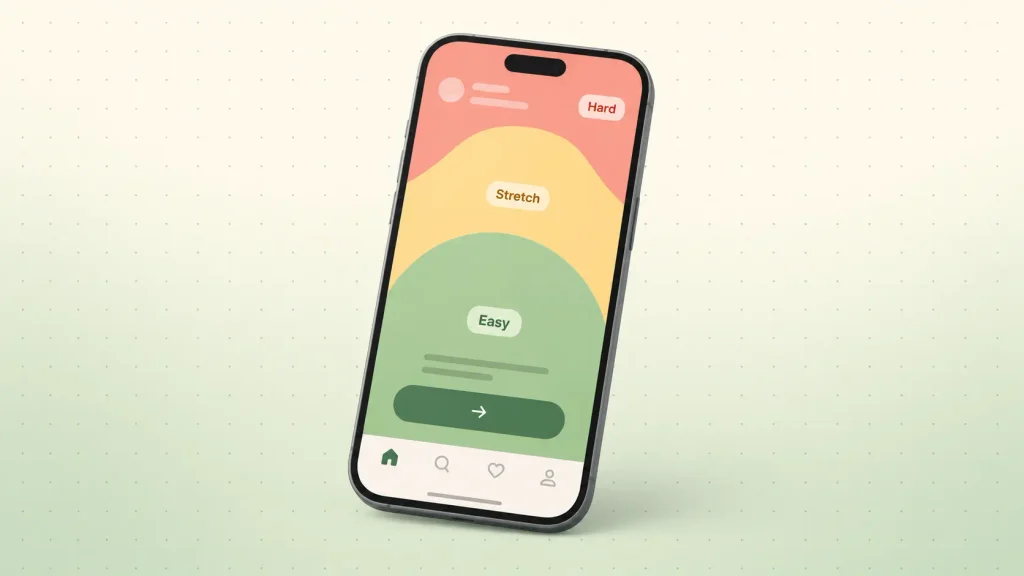
People often hold a phone in one hand and tap with their thumb. That makes the lower middle of the screen the easiest area to reach, and the top corners the hardest.
Bigger phones make it worse. The screen grows. The thumb doesn’t.
A few layout rules follow from that:
- Primary actions sit low: put Save, Pay, Send, and your main call to action in the lower half.
- Navigation lives at the bottom: keep main destinations in a bottom bar, not a menu in the top corner.
- Risky actions stay out of easy reach: keep Delete and Cancel away from the spot people tap without thinking.
- The top is for reading: titles, status, and summaries can live up there safely.
Here’s a quick test. Use your own app one-handed while standing on a bus. If you have to shift your grip to finish the main task, your thumb zone design needs work.
3. Size Touch Targets for Real Fingers
Small buttons cost you taps, and missed taps make an app feel broken. Both major platforms publish minimum sizes, and you’ll want to treat them as floors, not goals.
Here’s what Apple and Google specify:
| Platform | Minimum touch target | Where it’s defined |
| iOS | 44 x 44 points | Apple Human Interface Guidelines |
| Android | 48 x 48 dp | Google Material Design |
The visible icon can be smaller than the tap area. A 24-point icon inside a 44-point hit box looks clean and still works. Watch tightly packed rows of links, tags, and close buttons, because that’s where mistaps pile up.
4. Keep Navigation Shallow and Visible
Users should reach every main area of your app in one tap from anywhere. A visible bottom tab bar with three to five labeled destinations does that far better than a hidden menu.
Big brands get this wrong too. Baymard Institute’s 2026 mobile app benchmark found that 40% of leading ecommerce apps don’t offer a clear path to all product categories. It also found that 90% leave out a submit button next to the search field.
A few checks you can run on your own app:
- Labels on tab icons: icons alone make people guess.
- Three to five tabs: fewer feels thin, and more gets cramped on a narrow screen.
- Search where people expect it: if users arrive knowing what they want, search should be one tap away.
- A hamburger menu for extras only: settings and help can hide, but core destinations shouldn’t.
If a new user can’t name your app’s main sections after a minute of use, your navigation is hiding them.
5. Give Every Screen One Primary Job
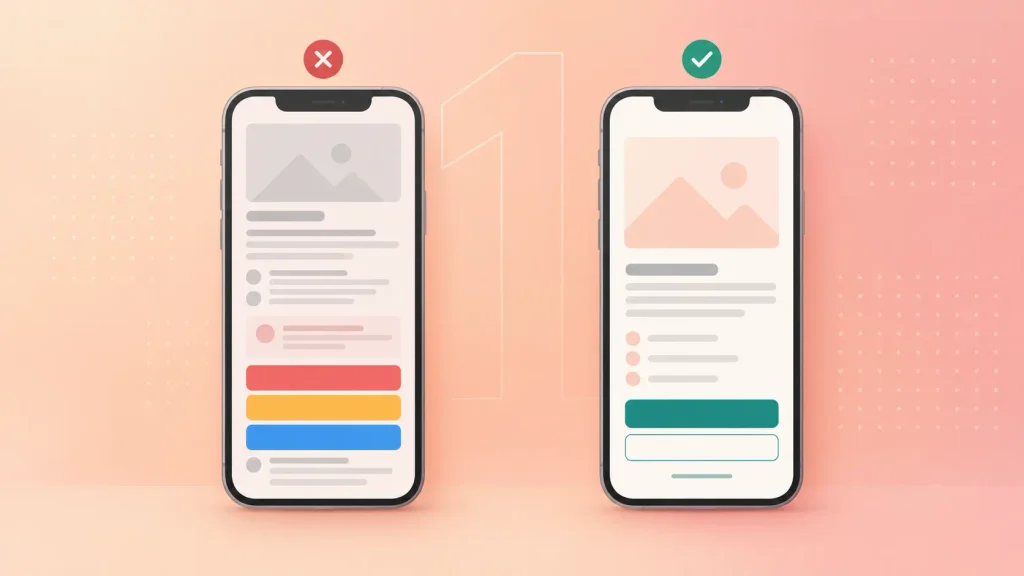
Each screen should have one main thing you want the user to do. When three buttons compete for attention, people hesitate. On mobile, hesitation often ends with a closed app.
In mobile UI design, visual hierarchy is how you show that job. Size, color, and position tell people what matters before they read a word, and that keeps cognitive load low.
Ways to cut the noise:
- One filled button per screen: make secondary actions outlined buttons or text links.
- Generous white space: give the main element room, so it reads first.
- A tight color palette: save your brand accent for things people can tap.
- Progressive disclosure: tuck advanced options behind a “More” tap instead of showing everything at once.
Picking the one job is a product decision as much as a design one. If you’re unsure which job a screen should own, how mobile app design works end to end covers the research that answers it.
6. Follow Platform Conventions Before Brand Flair
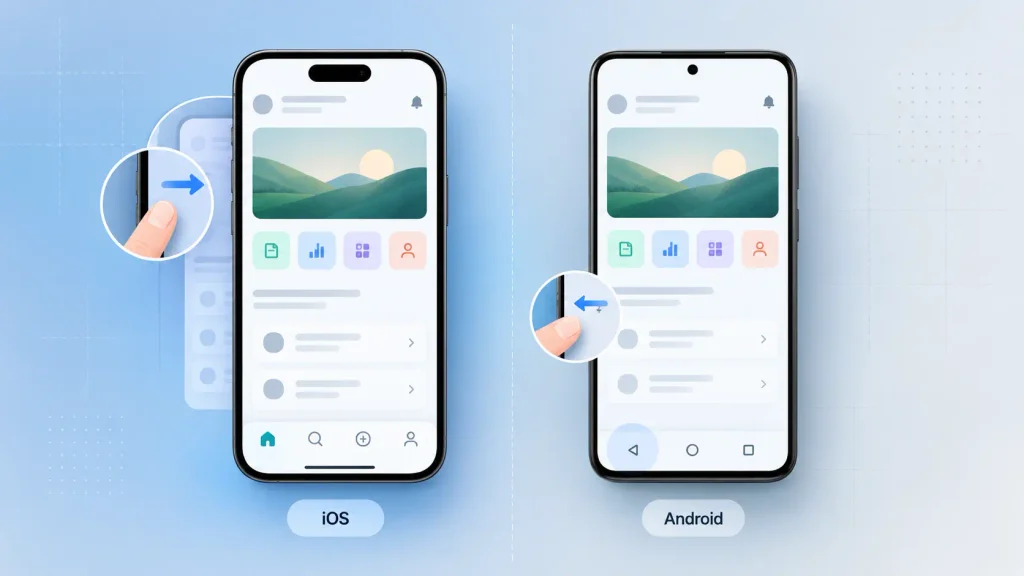
iPhone and Android users carry different muscle memory. Respect it, and your app feels familiar on day one. Break it, and a deliberate design choice feels like a bug.
This is also where mobile-first design parts ways with the web. Many web app design best practices assume a mouse, hover states, and a wide screen, which is why mobile app design best practices start from touch instead.
These are the differences that trip teams up most:
| Behavior | iOS (Human Interface Guidelines) | Android (Material Design) |
| Going back | Swipe from the left edge | System back gesture or button |
| Main navigation | Bottom tab bar | Bottom navigation bar |
| Icon set | SF Symbols | Material Symbols |
| Text scaling | Dynamic Type | System font size setting |
Shared visuals across both platforms are fine. The interaction model is what should feel native to each one.
Gestures need the same care. Pinch-to-zoom on images is a convention people expect, yet Baymard’s app benchmark data shows 80% of the benchmarked apps don’t support it. Keep custom gestures as shortcuts, never as the only way to do something.
7. Make Text Readable at Arm’s Length
People read your app on a moving train, in bright sun, and with tired eyes. Text that looks crisp on a designer’s big monitor can fail all three.
The basics worth getting right:
- A comfortable body size: iOS’s default body text style is 17 points, a sensible benchmark for Android too.
- Contrast of at least 4.5:1: that’s the WCAG AA minimum for normal-size text.
- Support for system text scaling: your layout should survive the largest setting without clipping words.
- No text baked into images: it can’t scale, can’t be read aloud, and often fails contrast.
Words matter as much as type size. “Payment failed. Check your card’s expiry date” helps someone fix the problem, while “Error 402” just stops them. Write labels and messages that say what happened and what to do next.
8. Cut Typing to the Minimum
Typing on glass is slow and error-prone. Every field you remove makes the task faster and lowers the chance someone gives up halfway.
Ways to reduce it:
- The right keyboard per field: a number pad for phone numbers and codes, an email keyboard for email.
- Autofill and paste support: let the OS fill addresses, passwords, and one-time codes.
- Biometric or passkey sign-in: Face ID, fingerprint, and passkeys beat typing a password on a small keyboard.
- Smart defaults: pre-select the most common option, so people only change it when they need to.
- Pickers instead of free text: dates, quantities, and countries are quicker to choose than to type.
Try counting the keystrokes in your sign-up and checkout flows. Then ask how many of them your app could have known already.
9. Design Every State, Not Just the Happy Path
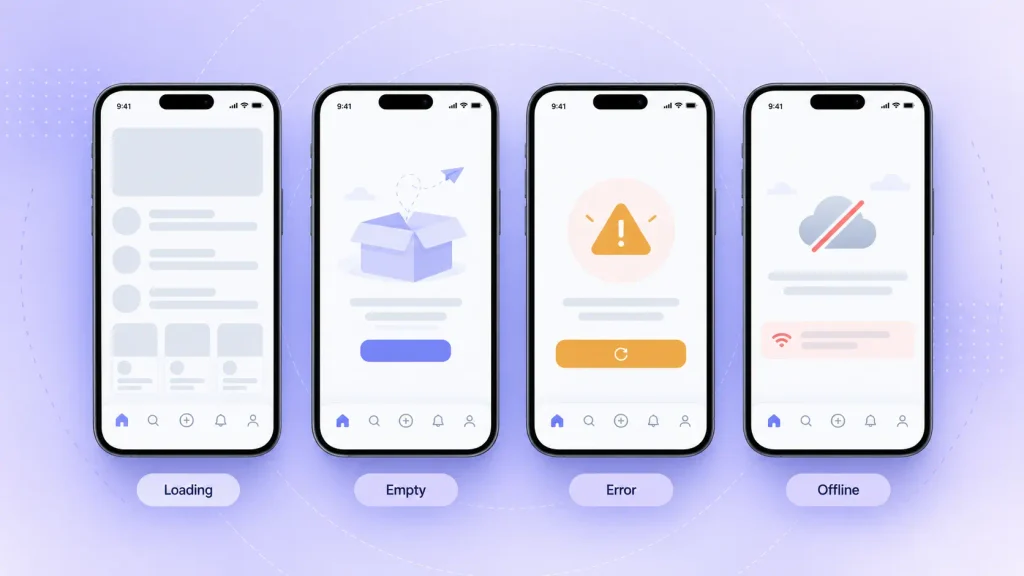
Most design files show screens where everything works. Real users also see the other states: loading, empty, failed, and offline.
When those states aren’t designed, developers fill them in under deadline. That’s how you end up with blank screens and “Something went wrong.”
Here’s what each state needs:
| State | What users need | Common miss |
| Loading | A sense of what’s coming | Blank screen or endless spinner |
| Empty | Why it’s empty, plus a first action | “No items” with nothing to tap |
| Error | What failed and how to fix it | Generic error code |
| Offline | Last saved data and a clear notice | Frozen screen or crash |
| Partial success | What went through and what didn’t | Silent failure |
I’d suggest asking your designer for these states on every key screen before development starts. It’s a small ask at the wireframe stage and an expensive one after launch.
10. Make the App Feel Fast and Responsive
Speed is part of the design, not only an engineering metric. People judge an app by how fast it feels, and design shapes that feeling more than most teams expect.
Tactics that help:
- Skeleton screens: gray placeholders shaped like the incoming content show progress and structure.
- Optimistic updates: show a like or a sent message instantly, sync in the background, and roll back clearly if it fails.
- Instant feedback: a button should react the moment it’s tapped, with a color change, a haptic tap, or both.
- Purposeful microinteractions: motion should confirm an action or show where something went, never make people wait.
- Reduced motion respected: iOS and Android both let users turn motion down, and your app should follow that setting.
It’s worth testing on a budget Android phone with a slow connection. That’s closer to what many of your users carry than the flagship on your desk.
11. Build Accessibility In From Day One
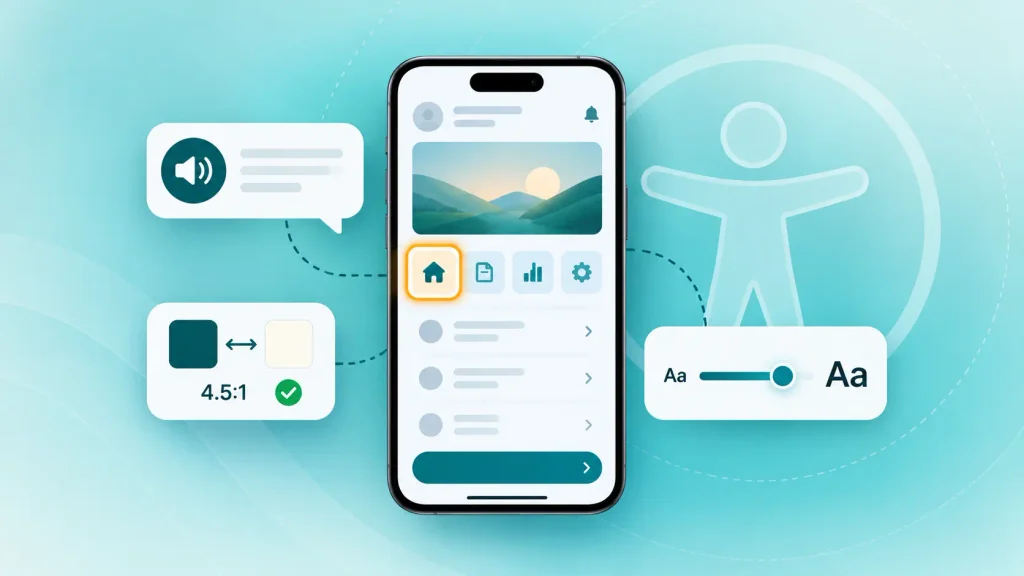
Accessible design makes your app usable by more people, and that group is bigger than most teams assume. The World Health Organization estimates that 1.3 billion people, about 16% of the world’s population, live with a significant disability.
Everyone else gains too. High contrast helps in sunlight. Large tap targets help anyone holding a coffee in the other hand.
For mobile, WCAG 2.2 and the built-in screen readers point to a short list:
- Screen reader labels: every icon button needs a name that VoiceOver and TalkBack can read aloud.
- Contrast and scalable text: covered in practice seven, and still the most common slip.
- Logical focus order: people moving through a screen by swipe should meet elements in reading order.
- Gesture alternatives: anything done with a complex gesture also needs a simple tap option.
- Color plus a second cue: an error shown in red alone is invisible to some users, so add text or an icon.
There’s a legal side now too. The European Accessibility Act has applied since June 28, 2025, and it covers mobile apps for consumer services such as banking and e-commerce. If you sell in the EU, accessibility is a requirement, not a bonus.
12. Test With Five Users, Then Measure After Launch
You don’t need a big research budget to catch most mobile UX design problems. A clickable prototype and five people trying real tasks will show you where they get stuck, before any code exists.
The trick is to watch, not explain. Give someone a task, stay quiet, and note every hesitation and wrong tap. That’s usability testing at its cheapest and most useful.
After launch, numbers take over. Four metrics show UX problems early:
- Day-one and day-30 user retention: tells you whether the first session landed.
- Funnel drop-off: a big drop between two steps points to one specific screen.
- Time to first key action: how long a new user takes to do the thing your app exists for.
- Crash-free sessions and error events: stability problems feel like design problems to users.
Testing belongs in every phase, not just at the end. The full app build process shows where research, prototyping, and testing slot in.
What’s Changed in Mobile UX for 2026
Two shifts are changing what good looks like this year. Neither replaces the 12 mobile UI/UX best practices above. Both build on them.
AI Features Need Visible Reasoning and an Undo
AI is moving into everyday apps quickly. In PwC’s AI agent survey, 88% of the senior executives surveyed said their teams plan to raise AI budgets in the next 12 months because of agentic AI.
For your app, that means more features that act on the user’s behalf. People will trust them only if they can see why the app did something and take it back.
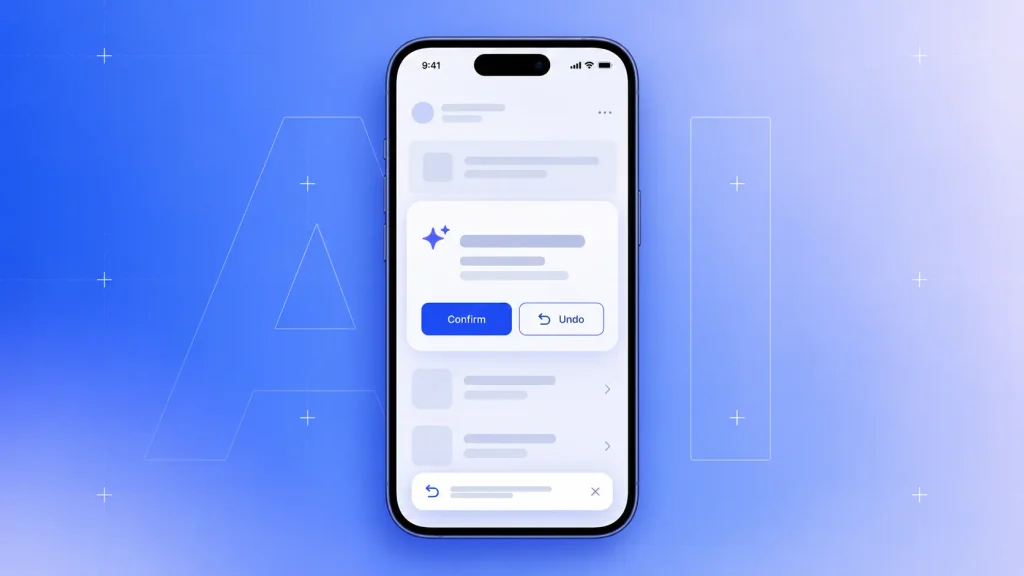
Three habits make AI features feel safe:
- Show the reason: a short line such as “Suggested because you ordered this last week.”
- Confirm before acting: let people review anything that sends, buys, or deletes.
- Make undo obvious: a visible undo button beats a setting buried three screens deep.
Treat an AI feature like any other screen. It gets one clear job, clear feedback, and a way out.
One Experience Across Every Device
Your users switch between phone, tablet, laptop, and sometimes a watch in a single day. If buttons, icons, and terms change between them, people relearn your product each time.
A shared design system fixes most of this. You keep one set of colors, type, components, and words, adapted per platform but recognizably the same product.
Mobile UI/UX Best Practices at a Glance
Here’s the full list grouped into six areas, with a check you can run on your own app in about two minutes each:
| Area | Practices covered | Two-minute check |
| First session | Value before sign-up | Count screens before the first useful action |
| Reach and touch | Thumb zone, touch targets | Finish the main task one-handed |
| Clarity | Navigation, one job per screen | Ask a new user to name the main sections |
| Platform and text | Conventions, readable text | Swipe back on iOS, set text size to max |
| Effort and resilience | Less typing, every state, speed | Switch to airplane mode mid-task |
| Inclusion and proof | Accessibility, testing | Run the main flow with a screen reader on |
Any area that fails its check is your next design ticket.
How to Prioritize Mobile UI/UX Best Practices by Product Stage
You can’t fix everything at once, and you shouldn’t try. Which mobile UI/UX best practices matter most depends on where your app is today.
Here’s how the focus shifts by stage:
| Stage | Fix first | Can wait |
| MVP | First session, navigation, touch targets | Advanced motion, personalization |
| Post-launch growth | Error and empty states, speed, typing effort | Visual refresh |
| Scaling | Accessibility audit, cross-device consistency, AI trust | New visual trends |
At the MVP stage, a tight core flow beats a polished interface. If you’re scoping that first version, mobile MVP development is built around exactly that trade-off.
Design scope also drives budget, so it helps to know what a mobile app costs to build before you commit. Once you’re live, a mobile app consulting review can tell you which of these fixes will actually move your retention numbers.
How Boomdevs Fixes Mobile UX That Loses Users
When an app gets downloads but loses users, the cause usually sits in a few of the mobile UI/UX best practices above. Boomdevs starts by finding which ones, then redesigns and tests the screens that matter most.
With 10+ years in the work and 3.5K+ projects delivered, the team has seen most of the ways a mobile flow can break. A typical mobile UX engagement covers:
- UX review: your onboarding, navigation, and core flows checked against these 12 practices.
- Redesign: new screens for iOS and Android, with every state designed, not just the happy path.
- Prototype testing: sessions with real users before a line of production code.
If you’d like a lighter starting point, UI/UX consulting gives you an expert read without a full redesign. And if you’re comparing teams, here’s how to choose a UI/UX design agency without getting swayed by pretty portfolios.
Want to know which of these 12 your app is missing? Book your free mobile UX review and get a clear list of what to fix first.
Frequently Asked Questions
What Is the Thumb Zone in Mobile Design?
The thumb zone is the part of the screen you can reach comfortably with your thumb while holding the phone in one hand. It’s roughly the lower middle of the display. Good thumb zone design puts primary actions and navigation there, while the top corners suit content you only read.
What Is the Minimum Touch Target Size for Mobile Apps?
Apple’s Human Interface Guidelines set 44 x 44 points for iOS. Google’s Material Design sets 48 x 48 dp for Android. The visible icon can be smaller, as long as the tappable area meets the minimum.
What’s the Difference Between Mobile UI and Mobile UX?
Mobile UX design shapes how the app works: the flows, the structure, and how easily people reach their goal. Mobile UI design shapes how it looks and responds: colors, type, buttons, and motion. A polished UI can’t save a confusing flow, so UX problems usually come first.
Do Mobile Apps Need to Follow WCAG?
WCAG was written for web content, but it’s the standard reference for app accessibility too. In the EU, the European Accessibility Act now requires accessible apps for many consumer services, including banking and ecommerce. Elsewhere, following WCAG 2.2 is still the safest way to avoid shutting users out.
How Do You Test Mobile App UX Before Launch?
Build a clickable prototype of your key flows and ask about five people to complete real tasks while you watch. Note where they hesitate or tap the wrong thing, fix those spots, and test again. It costs far less than finding the same problems after release.